Upload your image

PNG, JPG or WebP • Up to 20 MB
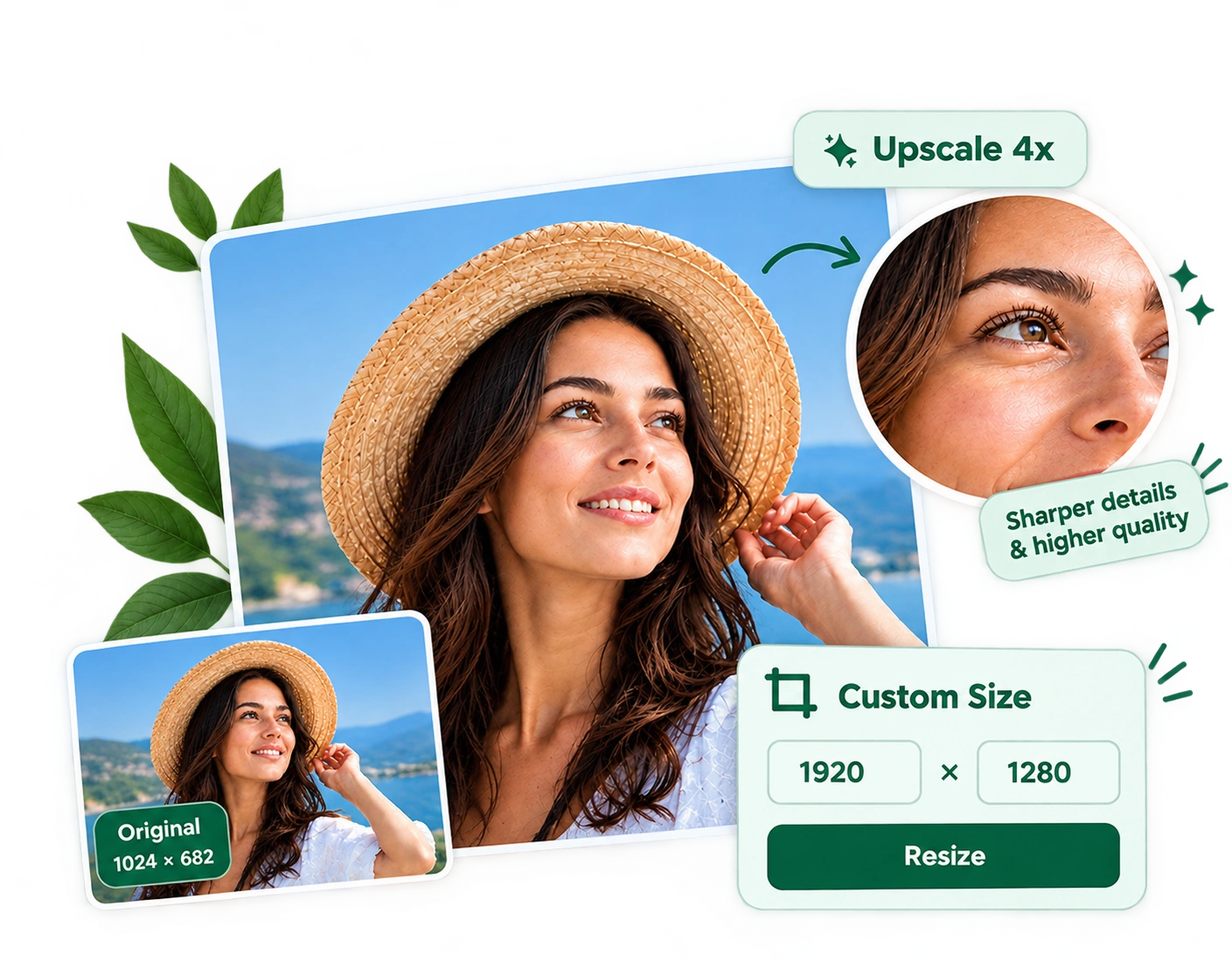
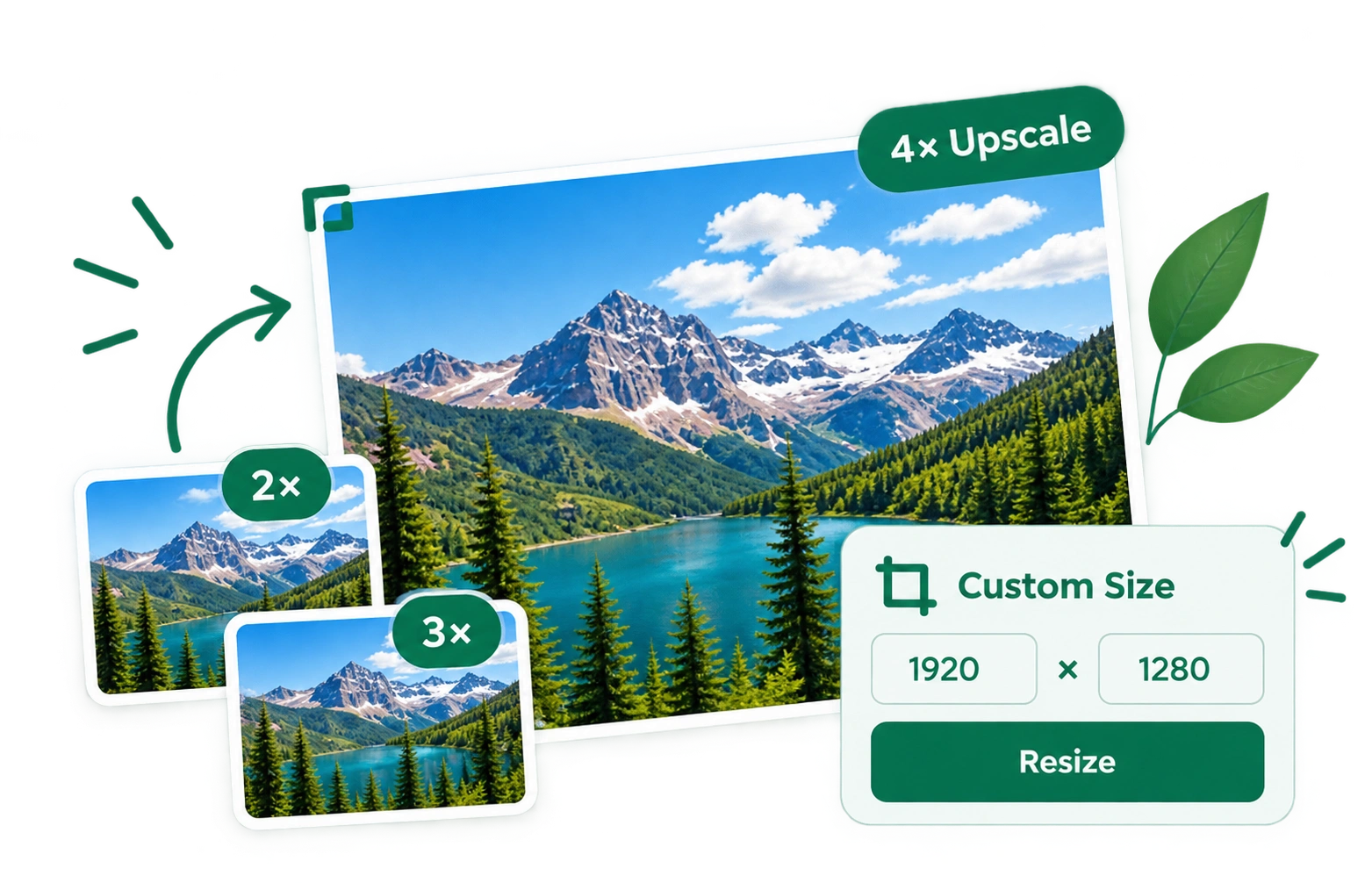
Resize images to exact dimensions or upscale them 2×, 3×, or 4× with high-quality interpolation.
Everything you need to work with images — and more. Discover our growing collection of simple, powerful tools for your everyday tasks.
CleanCutBG's resize tool changes the pixel dimensions of your image in two directions: downsizing large photos to fit strict upload limits, or upscaling small images 2×, 3×, or 4× for larger prints and displays. Both directions use LANCZOS, a high-quality interpolation algorithm that preserves sharpness far better than the default resamplers built into Windows or Preview.
The resizing engine runs server-side and delivers results instantly — no app to download, no registration. Feed it JPG, PNG, WebP, or HEIC files up to 20 MB each, and process one image at a time. JPG, PNG, and WebP are supported; HEIC files should be converted to one of these formats before uploading.
Get the right dimensions for every purpose — from web and social media to print and uploads.
Resize to fit web and digital platforms without losing quality.
Instagram Feed & Story, YouTube thumbnail, LinkedIn banner, Facebook cover, X header.
Prepare photos for print, e.g., 4×6 inch at 300 DPI = 1200×1800 pixels.
Enhance small images by 2×, 3×, or 4× for better clarity and detail.
Keep all images the same width or height for a clean, professional look.
Meet size limits for job portals, government forms, and school application sites.
Make thumbnails for email, presentations, and catalogues.
Get the perfect dimensions without losing quality.
PNG, JPG or WebP • Up to 20 MB
 Output format
Keep aspect ratioYour image stays perfectly
proportioned.
Upscale up to 4×Get larger, sharper images
with ease.
Choose your formatPNG, JPG or WebP —
perfect for any use.
ⓘTip: Set width or height to 0 to automatically preserve the original aspect ratio.
Resizing sounds simple, but three related concepts trip people up.
Understanding them once makes every image tool easier for the rest of your life.
Pixels are the raw dots that make up a digital image. A 4032 × 3024 photo has 4032 dots across and 3024 dots down.
The aspect ratio is the shape, width divided by height. 4032 ÷ 3024 is 4:3 (traditional camera). 1920 : 1080 is 16:9 (widescreen). 1080 : 1080 is 1:1 (square). Change both width and height freely and you'll stretch the image; keep the ratio to preserve it.
DPI (dots per inch) only matters when you're printing. It tells the printer how densely to pack the pixels on paper.
A 1200 × 1800 pixel image printed at 300 DPI comes out at exactly 4 × 6 inches. The same file printed at 150 DPI comes out at 8 × 12 inches, same pixels, bigger print, half the sharpness.
Our resize tool works purely in pixels. To preserve aspect ratio, set only the width or the height and leave the other at 0,
we'll calculate it for you.
Upscaling multiplies the pixel count of a small image. It's genuinely useful in some situations
and a waste of time in others. Here's the honest breakdown:
Enlarging small logos, icons, or vector-style graphics to fit a larger canvas. LANCZOS keeps clean edges sharp without adding noise.
Bumping a 640×480 scan of an old photo to 1920×1440 for viewing on a modern screen, the extra pixels look smoother than nearest-neighbour zoom.
Upscaling can never invent detail that isn't in the original. A blurry photo will stay blurry, just bigger. For real detail recovery, use our Enhance tool with sharpness first.
with heavy JPEG compression. The blocky artifacts get enlarged along with the image. Compress-heavy Instagram exports often look worse when upscaled.
LANCZOS is the industry-standard high-quality resampling filter, used by Photoshop, GIMP,
and every major image library. It's slower than bilinear or bicubic but gives noticeably crisper
results, especially on sharp edges and text.
Get the best results every time with these simple but important tips.
They'll help you resize your images without losing quality and keep
your results sharp, clear and professional.
Shrinking pixel count is the single biggest way to reduce file size, before you even touch the quality slider.
Every resize loses a tiny bit of detail, you can't get it back by resizing up again. Always keep an untouched original file.
For social media, use the exact platform-recommended dimensions to avoid compression artifacts and keep your images looking sharp.
When printing photos, always set the width or height to 0 so the ratio stays locked. This keeps your image from looking stretched or squashed.
For photos, multiply the print size by your target DPI. A 5×7 inch photo at 300 DPI needs at least 1500×2100 pixels.
After heavy upscaling (3× or 4×), run the Enhance tool and add a little sharpness to compensate for softness.
Remember: These tips help you get the best quality and sharpness, whether you're resizing for
web, social media, printing, or any other use.
Your upload is processed for the requested edit and is not used as a public example. For storage details, read our privacy policy.